IPTVONIX Setup Guide
Step-by-step setup for every device. Install the right player app, choose the correct login method, and get watching fast. If you’re new, start here first before messaging support.
Recommended apps per device
Beginner-friendly steps
Common fixes
Updated regularly
Important: IPTV player apps are third-party apps. We provide your access + guidance, but installation steps vary slightly by device/app version.
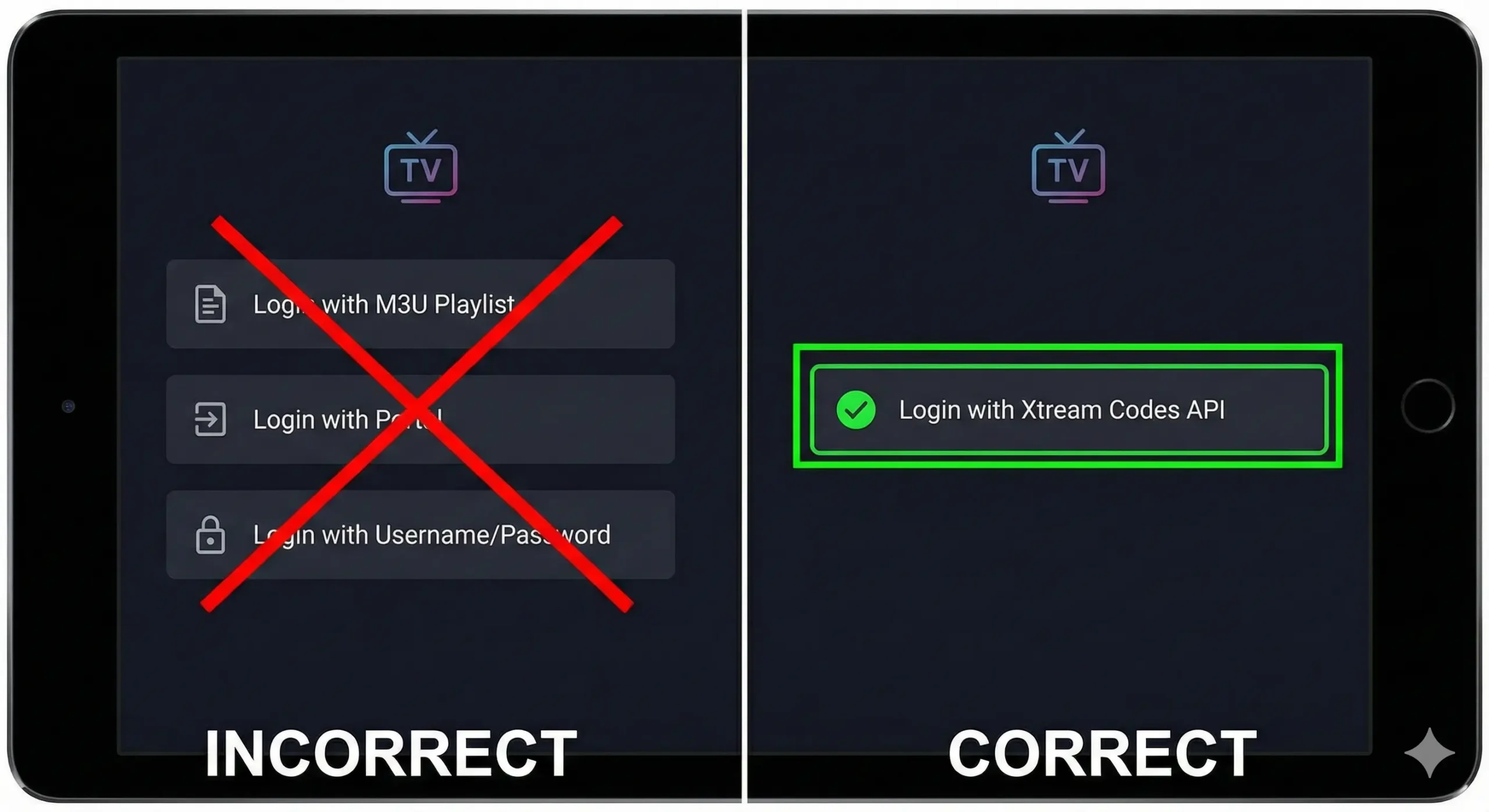
Always use the login method shown in this guide (usually “Xtream Codes API”).
Before You Start (Read This First)
IPTV does not come as a single app. You must install a player app on your device, then log in using the credentials we provide. Most setup problems happen when the wrong login option is selected.
âś… Correct Login Method
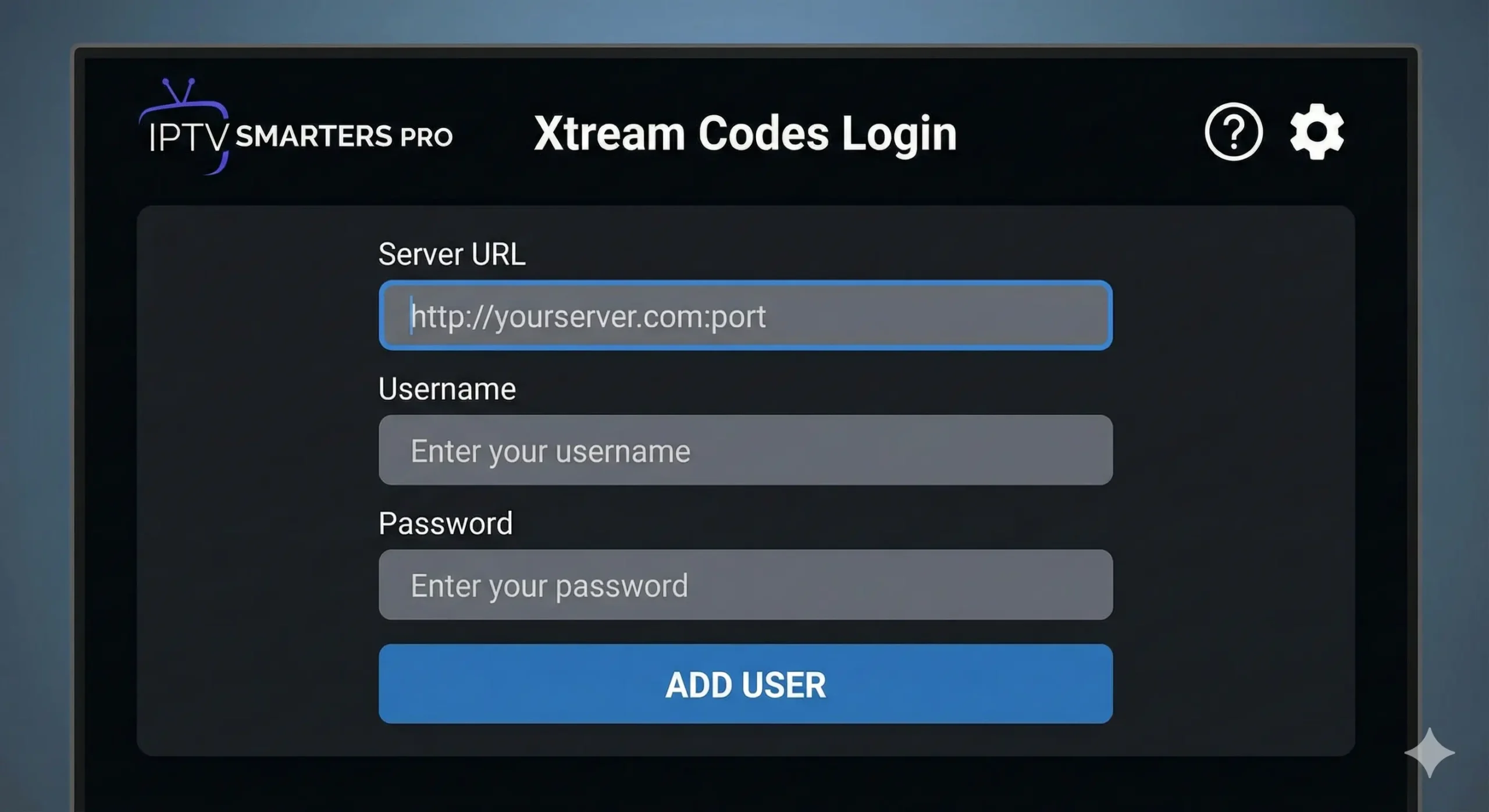
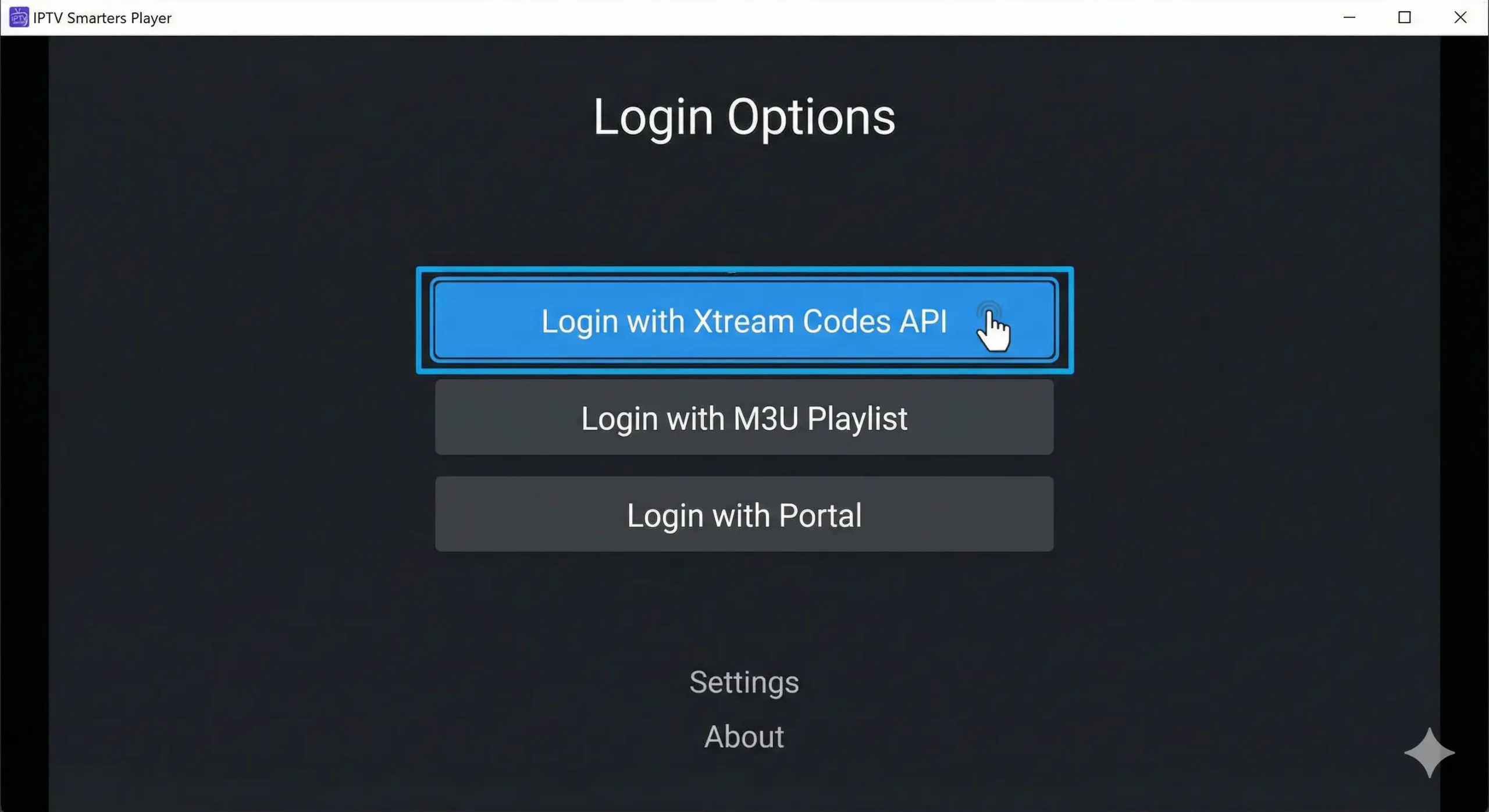
- Always choose Xtream Codes API
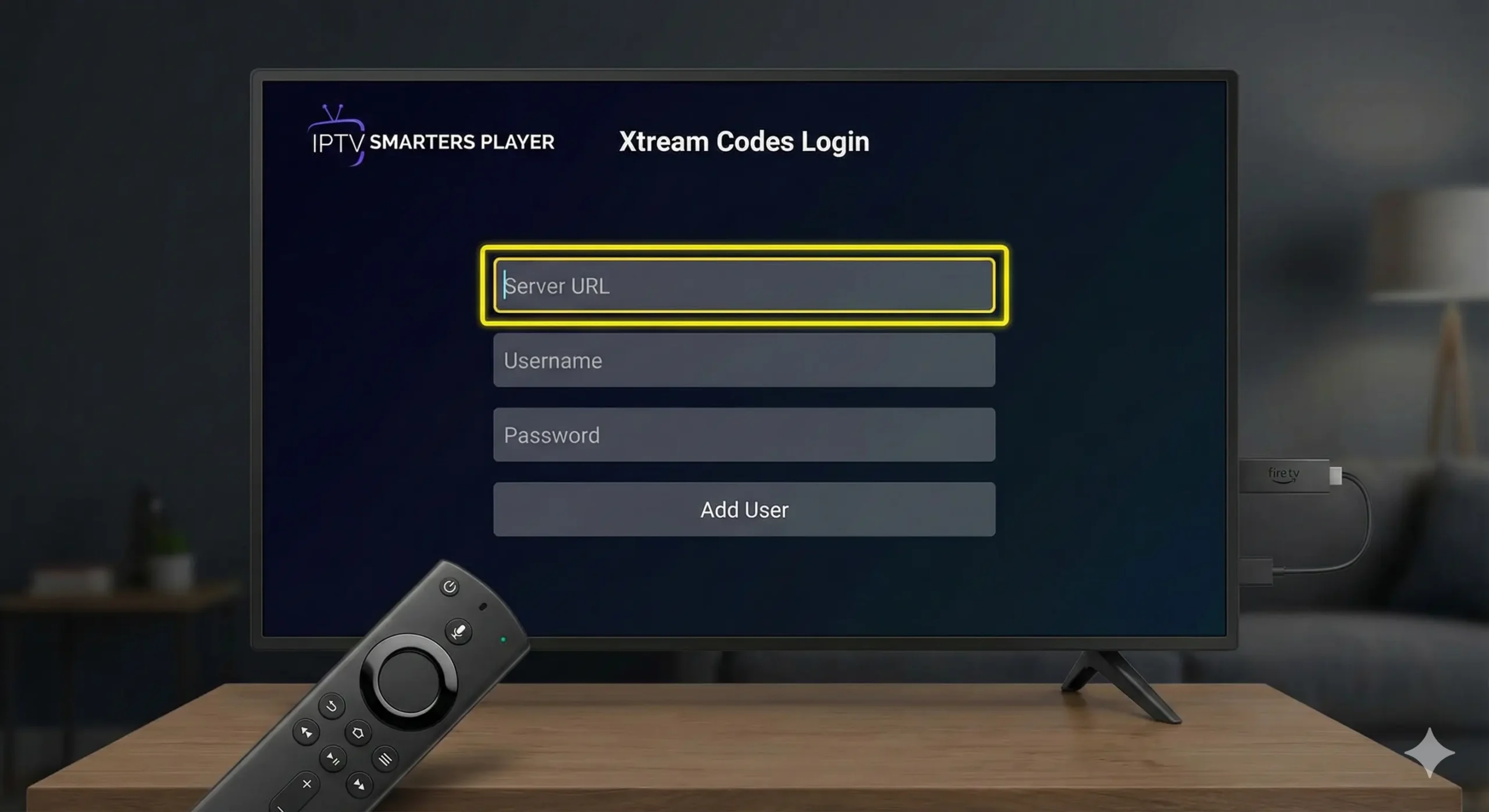
- Enter the Server URL, Username, and Password exactly as provided
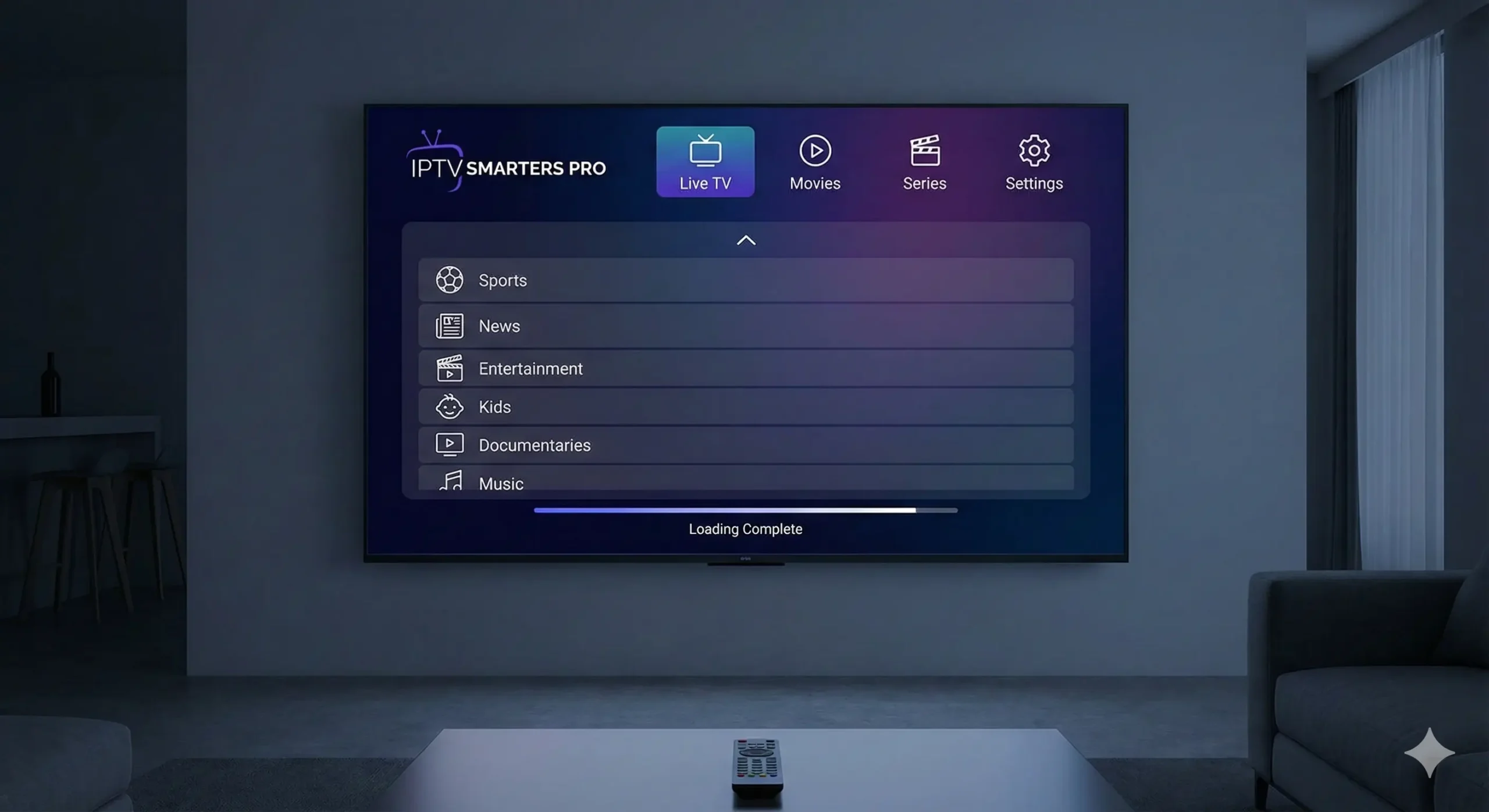
- Wait for content to load (first load may take a minute)
❌ Do NOT Use These Options
- App “Free Trial” or “Demo” buttons
- M3U login (unless we specifically tell you to)
- Multiple login methods at once
- Editing or guessing the server URL
Important: Some IPTV apps advertise their own 7-day or 14-day trials. These are for the app itself,
not for the IPTV service. Always ignore app trials and use the login details we send you.
Setup Tutorials by Device
We recommend IPTV Smarters (Player) for most devices. Always use Login with Xtream Codes API.
Android Box / Android TV
Recommended
IPTV Smarters (Player)
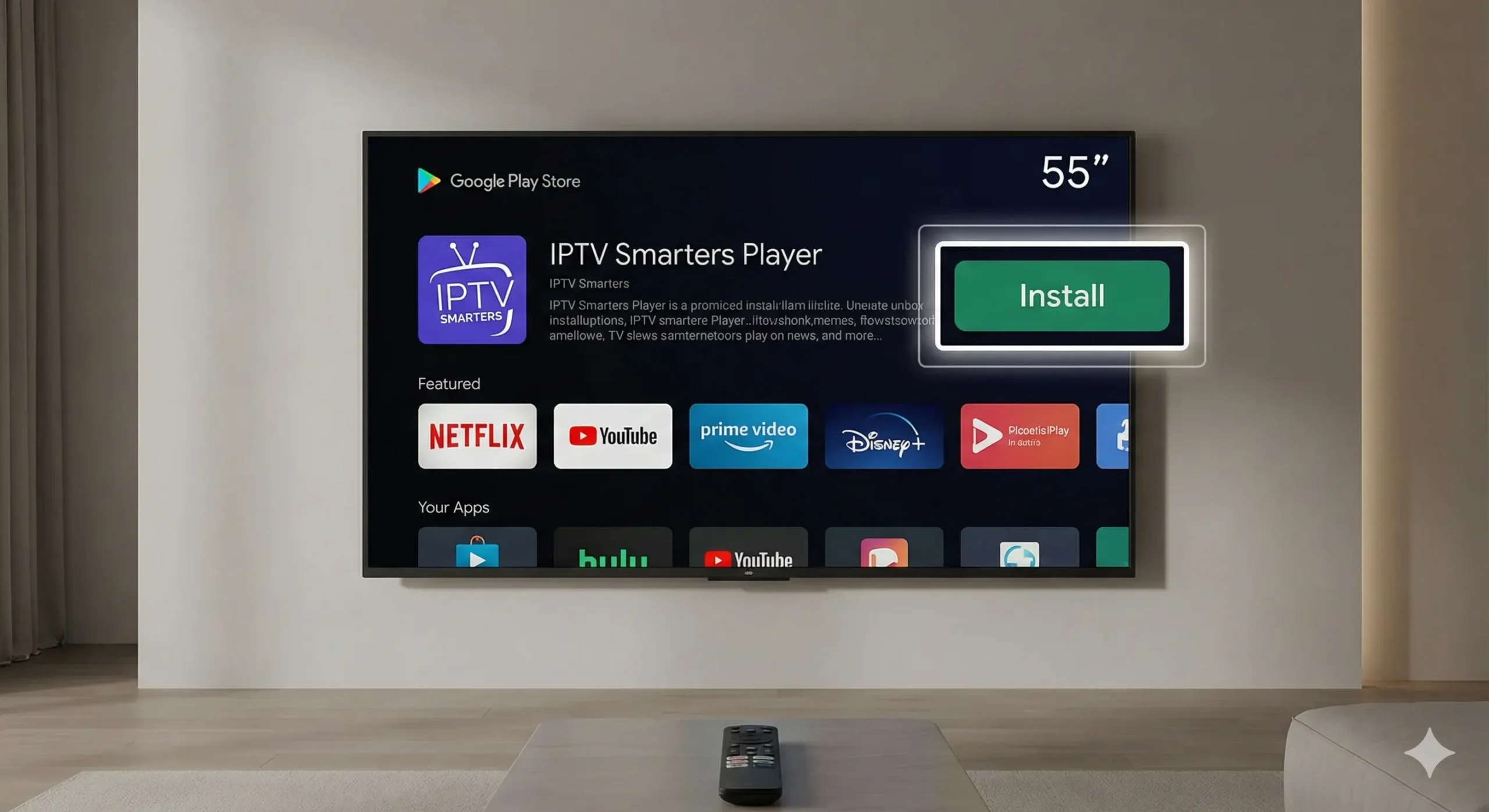
- Open Google Play Store
- Install IPTV Smarters (Player)
- Select “Login with Xtream Codes API”
- Enter Server URL, Username, Password
Ignore any app “free trial” prompts.
Amazon Firestick
Popular
IPTV Smarters (Player)
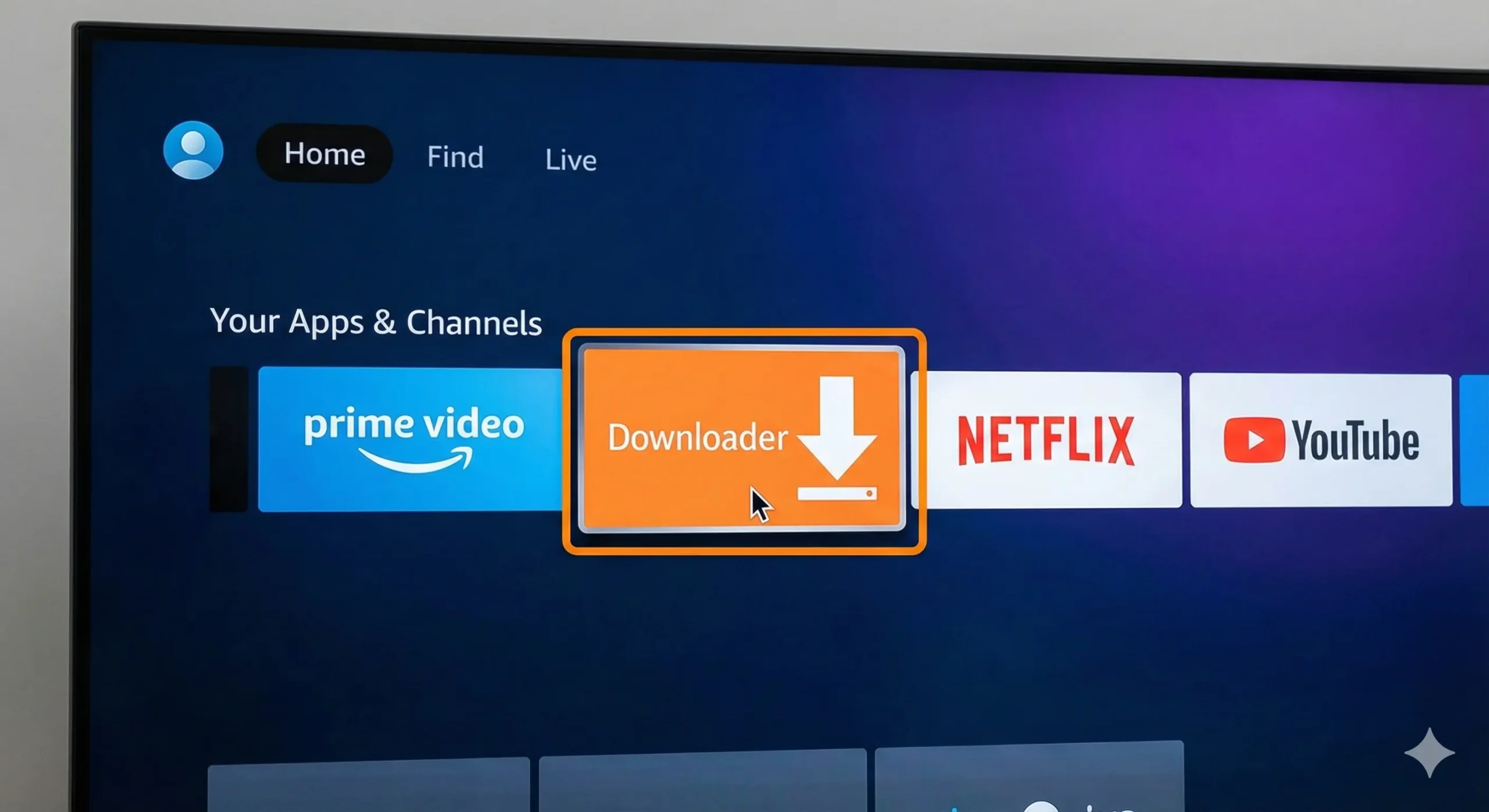
- Install Downloader from Appstore
- Install IPTV Smarters
- Login using Xtream Codes API
Android Phone / Tablet
Easy
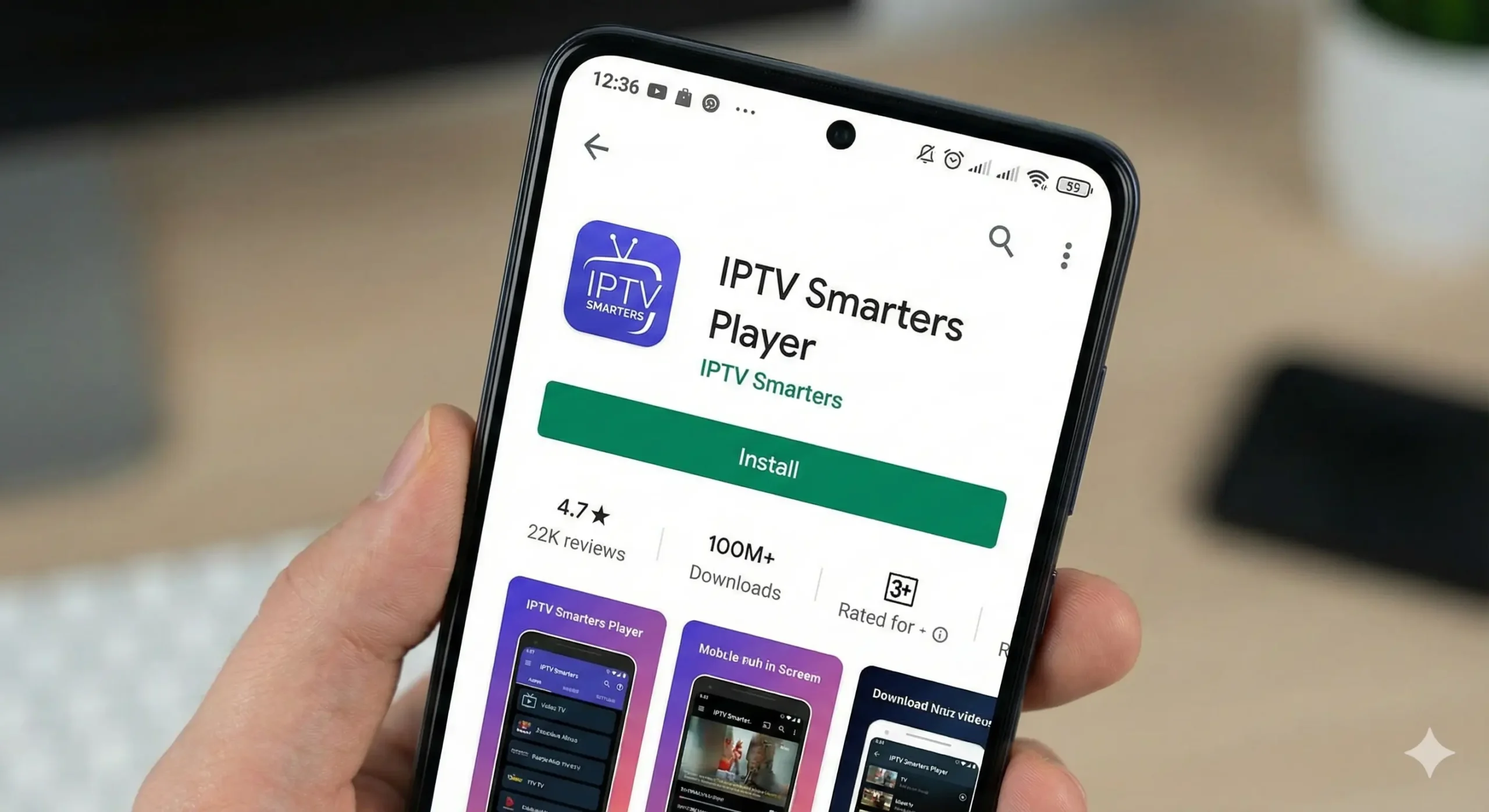
- Install IPTV Smarters from Google Play
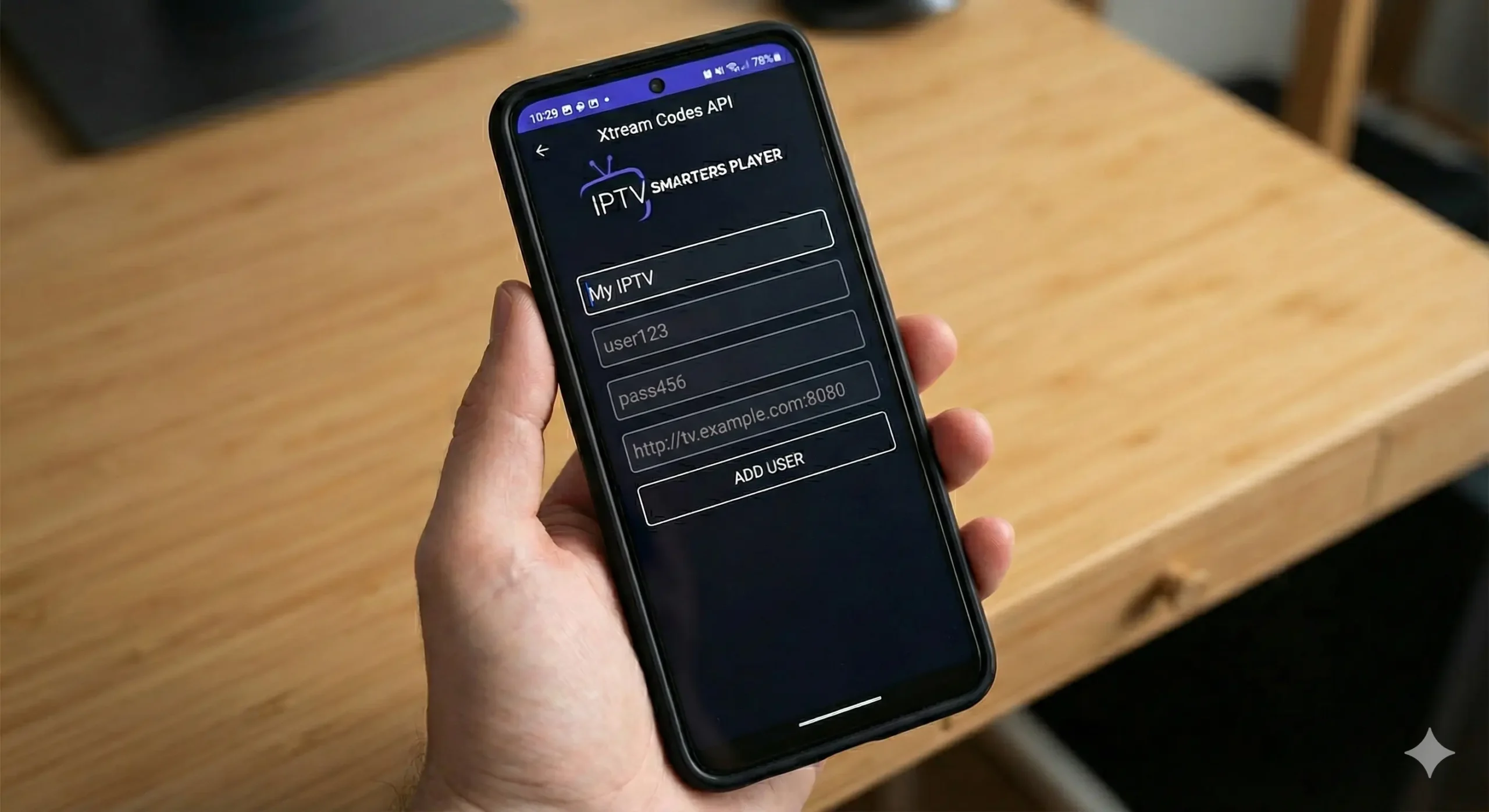
- Select Xtream Codes API
- Enter credentials
iPhone / iPad (iOS)
App Store
- Install an IPTV player from App Store
- Choose Xtream Codes API
- Enter credentials
Smart TV (Samsung / LG)
Varies
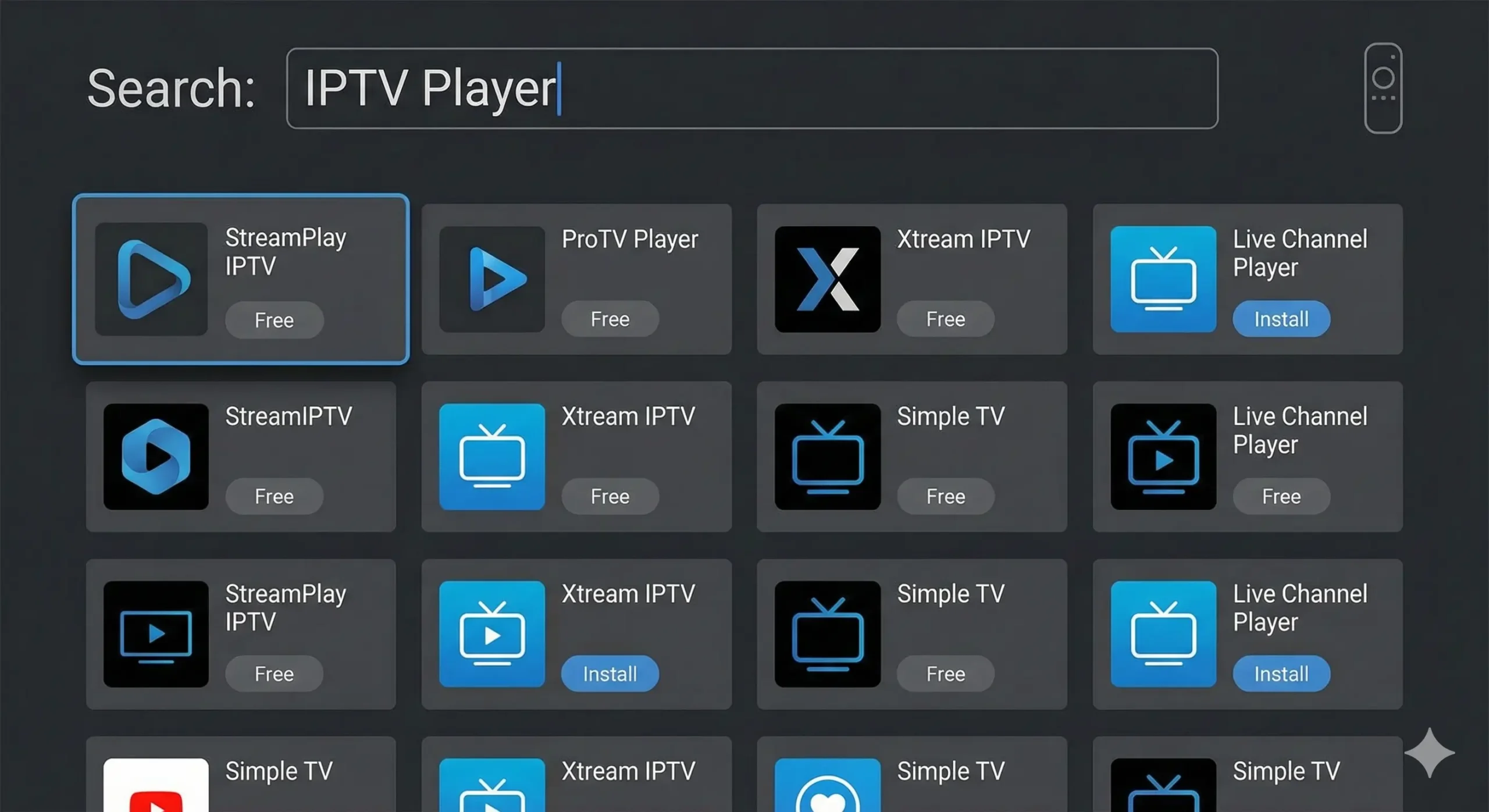
- Search TV App Store for IPTV player
- If unavailable, use Firestick
- Login with Xtream Codes API
Common Login Mistake (Avoid This)
Important
Common Issues & Quick Fixes
If something doesn’t work, don’t panic. Most issues are caused by the wrong login method, a typo, or an app setting. Follow the fixes below before contacting support.
Error: “Processing playlist” / “Playlist error”
- Make sure you used Xtream Codes API (not M3U)
- Double-check the Server URL is exactly correct
- Re-enter Username/Password carefully (no spaces)
- Close the app fully and reopen
Login fails (Username/Password)
- Copy/paste carefully or type slowly
- Make sure there is no extra space at the end
- Try on a different device/app to confirm
Buffering / Freezing
- Restart modem/router (simple but effective)
- Use a wired connection if possible (Ethernet)
- Try a different app (some apps run better on some devices)
- If traveling, try a Canadian VPN if needed
No channels / categories loading
- Wait 1–2 minutes (first load can be slower)
- Restart the app and try again
- Check you are online and your internet is stable
App shows “7-day/14-day trial”
- Ignore it — that’s the app’s trial, not the IPTV service
- Go back and choose Xtream Codes API
Works on one device but not another
- Each device needs its own correct setup
- Confirm the app version is updated
- Tell support the device type (Firestick, Android box, iOS, etc.)
Before You Contact Support (Do This First)
- Confirm you used Xtream Codes API
- Restart the app
- Restart the device
- Restart your router
- Send support: device type + app name + screenshot of the error
Note: Picture quality depends on your device and internet connection. The service streams at the content’s available quality,
and your TV may upscale the picture (especially on 4K/8K TVs).